View Users Current Location - Part I
Before you go any further, here's where we're at so far
At the moment, when the user selects the 'Map' menu option, they get to see a standard map, but not their own location (or even their coffees locations), so this step (and the next) is about implementing that (we'll look at the coffees location in later steps).
As we want to keep in line with the UI guidelines and approach, it makes sense to use a Fragment so first of all go ahead and create a new (Blank) Fragment called MapsFragment (NOT MapFragment) but DON'T create a layout or include interface callbacks
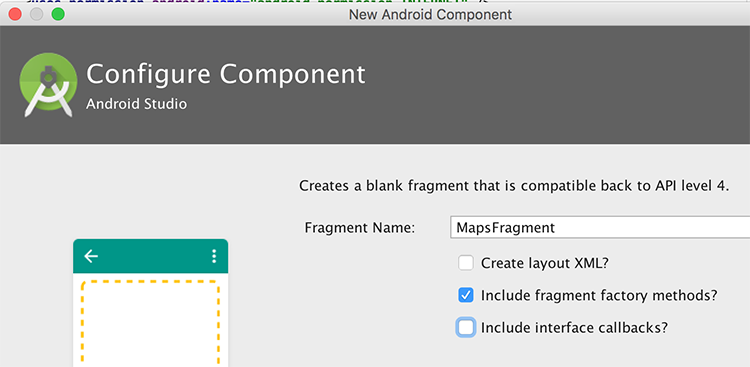
Make sure it extends from MapFragment and implements the following interfaces, like so
public class MapsFragment extends MapFragment implements
    GoogleApiClient.ConnectionCallbacks,
    GoogleApiClient.OnConnectionFailedListener,
    GoogleMap.OnInfoWindowClickListener,
    GoogleMap.OnMapLongClickListener,
    GoogleMap.OnMapClickListener,
    GoogleMap.OnMarkerClickListener,
    LocationListener {
...
}
Fix the errors and replace the existing newInstance() method with this one
public static MapsFragment newInstance() {
    MapsFragment fragment = new MapsFragment();
return fragment;
}
Replace the existing instance variables with these
private GoogleApiClient mGoogleApiClient;
private Location mCurrentLocation;
private LocationRequest mLocationRequest;
private List<Coffee> mCoffeeList;

private long UPDATE_INTERVAL = 30000; /* 30 secs */
private long FASTEST_INTERVAL = 1000; /* 5 secs */

/** Define a request code to send to Google Play services This code is
* returned in Activity.onActivityResult
*/
private final static int CONNECTION_FAILURE_RESOLUTION_REQUEST = 9000;

private final int[] MAP_TYPES = {
    GoogleMap.MAP_TYPE_SATELLITE,
    GoogleMap.MAP_TYPE_NORMAL,
    GoogleMap.MAP_TYPE_HYBRID,
    GoogleMap.MAP_TYPE_TERRAIN,
    GoogleMap.MAP_TYPE_NONE
};

private int curMapTypeIndex = 1;
Remove onCreate() and onCreateView() and replace with
@Override
public void onViewCreated(View view, Bundle savedInstanceState) {
    super.onViewCreated(view, savedInstanceState);
    setHasOptionsMenu(true);

TextView titleBar = (TextView) getActivity().findViewById(R.id.recentAddedBarTextView);
titleBar.setText("Coffee Map");

    mGoogleApiClient = new GoogleApiClient.Builder( getActivity() )
        .addConnectionCallbacks( this )
        .addOnConnectionFailedListener( this )
        .addApi( LocationServices.API )
        .build();

    initListeners();
}
Add the following methods
private void initListeners() {
    getMap().setOnMarkerClickListener(this);
    getMap().setOnMapLongClickListener(this);
    getMap().setOnInfoWindowClickListener(this);
    getMap().setOnMapClickListener(this);
}

@Override
public void onStart() {
    super.onStart();
    mGoogleApiClient.connect();
  }

@Override
public void onStop() {
    super.onStop();
        if( mGoogleApiClient != null && mGoogleApiClient.isConnected() ) {
                mGoogleApiClient.disconnect();
            }
  }

private void initCamera( Location location ) {
CameraPosition position = CameraPosition.builder()
    .target( new LatLng( location.getLatitude(), location.getLongitude() ) )
    .zoom( 14f )
    .bearing( 0.0f )
    .tilt( 0.0f )
    .build();

    getMap().setMapType(MAP_TYPES[curMapTypeIndex]);
    getMap().setMyLocationEnabled(true);
    getMap().getUiSettings().setMapToolbarEnabled(true);
    getMap().getUiSettings().setCompassEnabled(true);
    getMap().getUiSettings().setMyLocationButtonEnabled(true);
    getMap().getUiSettings().setAllGesturesEnabled(true);
    getMap().setTrafficEnabled(true);
    getMap().setBuildingsEnabled(true);
    getMap().getUiSettings().setZoomControlsEnabled(true);
    getMap().animateCamera(CameraUpdateFactory.newCameraPosition(position), null);
}
And replace the relevant methods with the following
@Override
public void onConnected(Bundle dataBundle)
{
// Display the connection status
try {
mCurrentLocation = LocationServices .FusedLocationApi .getLastLocation(mGoogleApiClient);
}
catch(SecurityException se) {
Toast.makeText(getActivity(),"Check Your Permissions",Toast.LENGTH_SHORT).show();
}
if (mCurrentLocation != null) {
Toast.makeText(getActivity(), "GPS location was found!", Toast.LENGTH_SHORT).show();
//LatLng latLng = new LatLng(mCurrentLocation.getLatitude(), mCurrentLocation.getLongitude());
}
else {
Toast.makeText(getActivity(), "Current location was null, Setting Default Values!", Toast.LENGTH_SHORT).show();
mCurrentLocation = new Location("Waterford City Default");
mCurrentLocation.setLatitude(52.2462);
mCurrentLocation.setLongitude(-7.1402);
}

initCamera(mCurrentLocation);
}

@Override
public void onConnectionSuspended(int i) {
if (i == CAUSE_SERVICE_DISCONNECTED) {
Toast.makeText(getActivity(), "Disconnected. Please re-connect.", Toast.LENGTH_SHORT).show();
}
else if (i == CAUSE_NETWORK_LOST) {
Toast.makeText(getActivity(), "Network lost. Please re-connect.", Toast.LENGTH_SHORT).show();
}
}


@Override
public void onConnectionFailed(ConnectionResult connectionResult) {
/* * Google Play services can resolve some errors it detects. If the error * has a resolution, try sending an Intent to start a Google Play * services activity that can resolve error. */

if (connectionResult.hasResolution()) {
try {
// Start an Activity that tries to resolve the error connectionResult.startResolutionForResult(getActivity(), CONNECTION_FAILURE_RESOLUTION_REQUEST);
/* * Thrown if Google Play services canceled the original * PendingIntent */
}
catch (IntentSender.SendIntentException e) {
// Log the error e.printStackTrace();
}
} else {
Toast.makeText(getActivity(), "Sorry. Location services not available to you", Toast.LENGTH_LONG).show();
}
}
Now, open your Home Activity and instead of loading the Map Activity (as is currently the case) implement the necessary code to display our MapsFragment.
If you've followed all the steps correctly, you should be seeing something like this
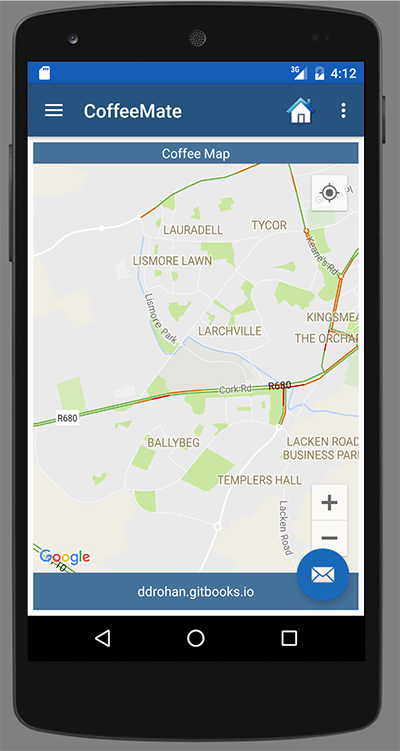
Experiment with different coordinates and restarting your app. Now obviously, having to manually change the coordinates is not an option, so the next step will be about adding Location Awareness to our App and updating the Map automatically, as the user moves around and adding a 'Marker' to show these movements.